Tuesday, February 24. 2026
Filing with EDGAR Next Using GoFiler: TOTP Secret Key and MFA Code Setup
Users can choose to add a cell phone or other authenticator device within login.gov. This additional phone or device may be easily used with GoFiler. When a filer attempts to use a feature in GoFiler that requires accessing login.gov, GoFiler will prompt the filer to provide the 6-digit Code, which they can manually enter from their phone or authentication device. However, GoFiler can function as an actual authentication app on login.gov, making the authentication process seamless. GoFiler will generate its own 6-digit codes based on the TOTP Secret Key created by EDGAR Next, eliminating the need for a third-party authenticator.
Setting up the TOTP Secret Key
- Enter your username and password to sign into login.gov. Authenticate with your current MFA method.
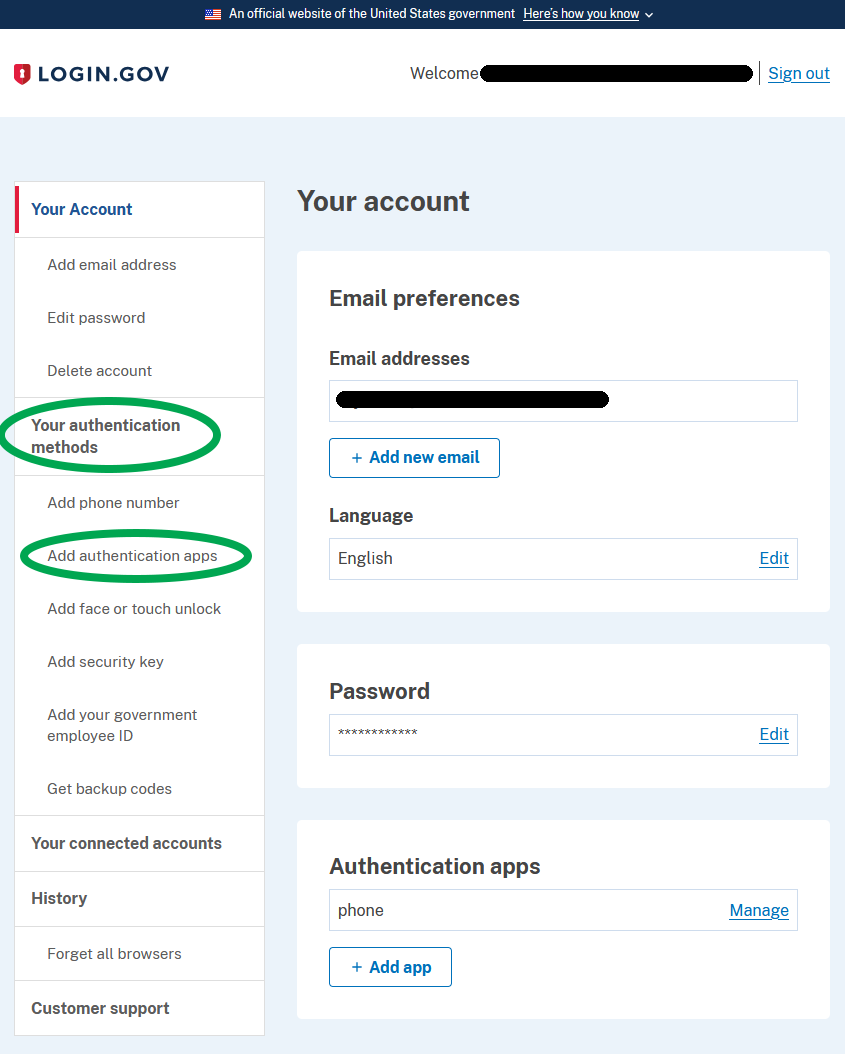
- Locate the TOTP Secret Key clicking on the following link: https://secure.login.gov/account
- On the left-side menu, locate “Your Authentication Methods” and select “Add Authentication Apps”.
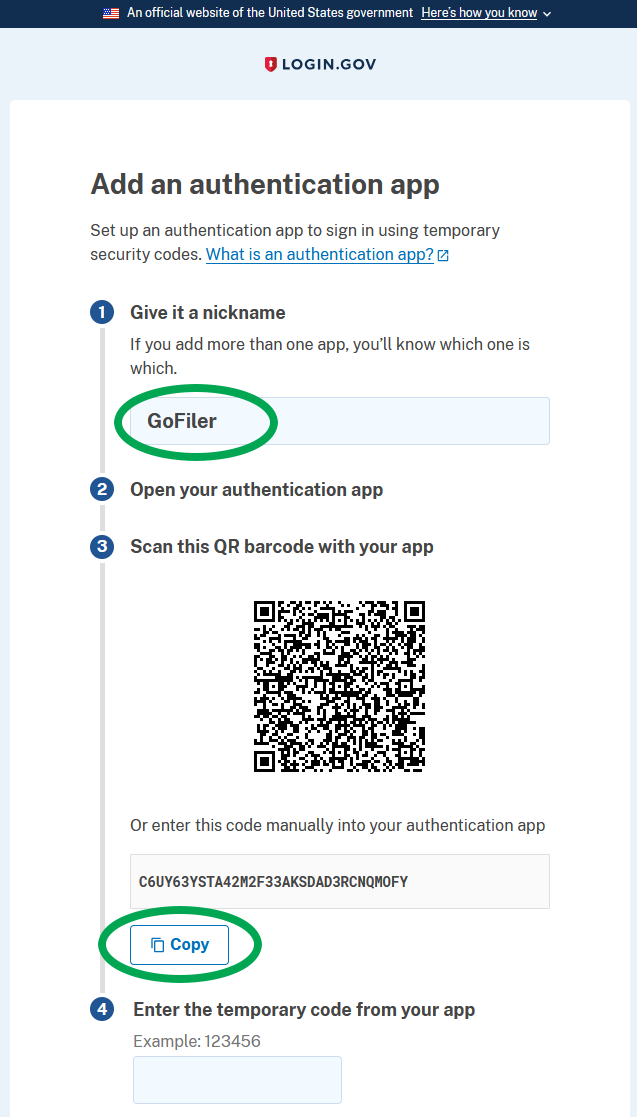
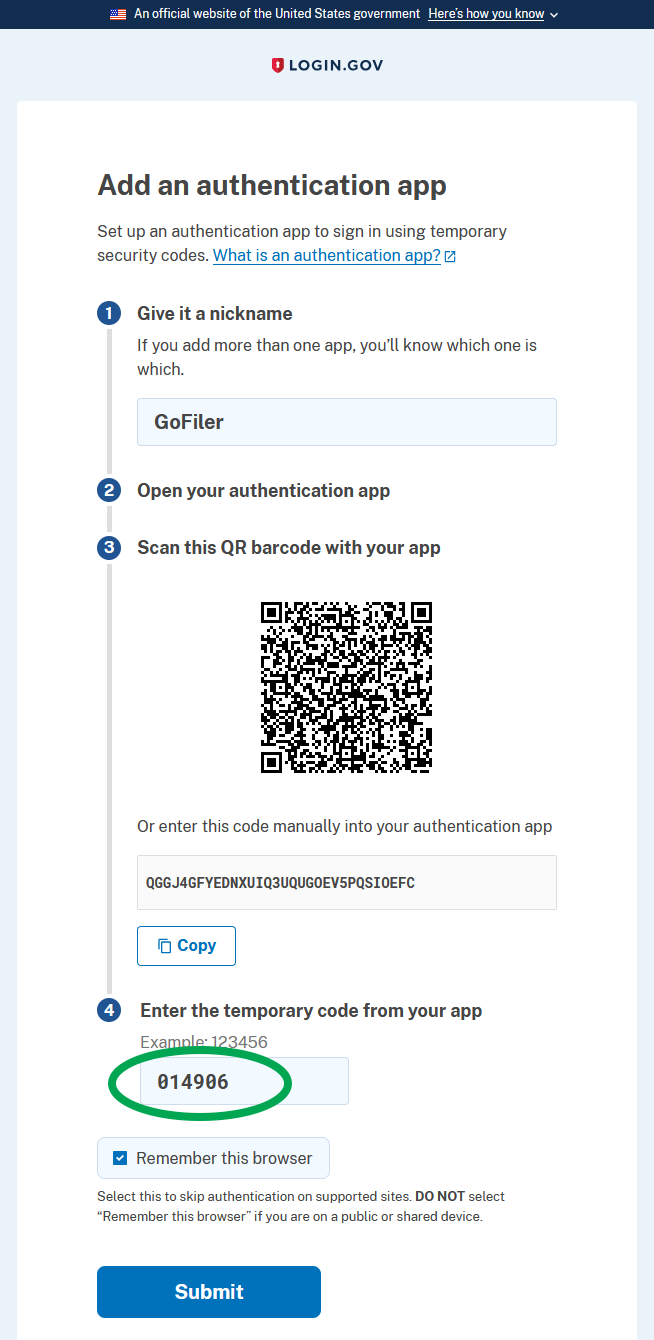
- Give the Authentication App a nickname (such as “GoFiler”) and click “Copy” in Section 3, below the QR Code. This will copy the TOTP Secret Key string now associated with GoFiler from login.gov to the clipboard.
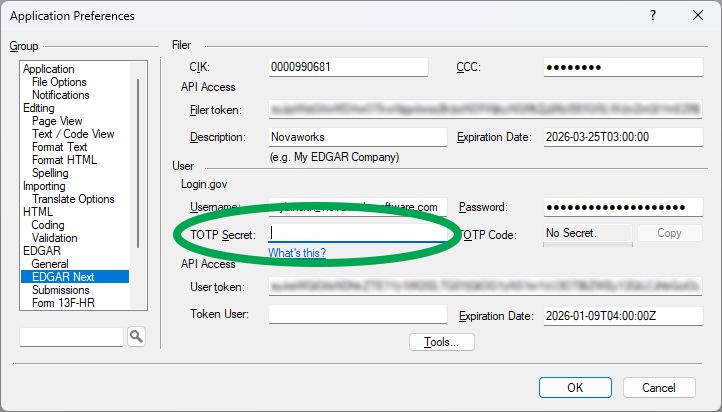
- Within GoFiler, click on Application Preferences > EDGAR > EDGAR Next.
- Red text may appear in that tab with the message: “NOTE: These settings are being controlled by the EDGAR Next Credential Manager. Use Set EDGAR Next Credentials to update the manager”. In this case, go to “Set EDGAR Next User Credentials” in the Preferences and paste the code in the TOTP Secret field there. If you do NOT see that red text warning, paste the code in the TOTP Secret field of the EDGAR Next section in Application Preferences.
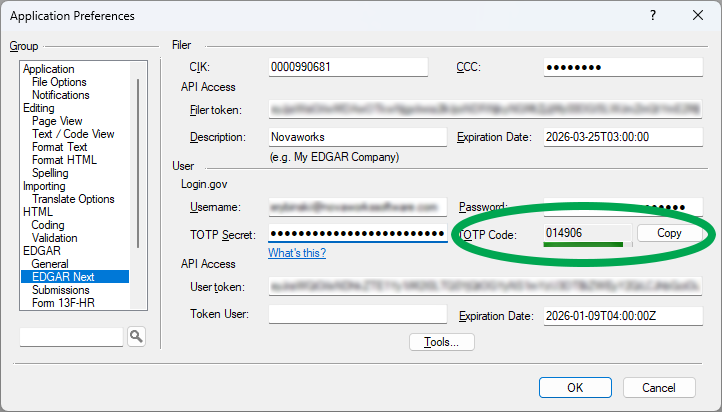
- GoFiler will then generate a TOTP code. Copy the TOTP code that appeared in GoFiler and enter that into the login.gov screen where you are adding GoFiler as an authentication app.
- Click “Submit” on login.gov and “OK” in GoFiler.
- Restart GoFiler.
Information Safety Tips for TOTP Secret Key Users:
- Refrain from storing or emailing the TOTP Secret Key in plain text.
- Protect and treat the TOTP Secret Key as if it were a password, because an individual who inadvertently obtains access to the TOTP Secret Key also would have the ability to generate valid login codes.
- Regenerate the TOTP Secret Key right away should it be compromised. If the TOTP secret is exposed, an individual (who also has access to the filer’s password) would have the ability to bypass MFA.
- Set up an individual TOTP Secret Key for each authorized member of a team that shares filing responsibilities to ensure proper access control and maintain integrity.
Be mindful that there is a limit of two authenticators on login.gov currently. This means if a filer has multiple cell phones or authenticators set up, one will have to be removed before GoFiler may be added.
For further information, please feel free to contact our technical support team at (585) 424-1700 or e-mail to support@novaworks.com.
Quicksearch
Categories
Calendar


Feeds